
ChatGPT is useful for studying when you use it to explain a concept in a new way, quiz you one question at a time, and give feedback on an answer you wrote yourself. It falls short when you treat it as the source of truth for your course, because it can be confidently wrong and does not know what your lecturer taught, and when you need to remember things for weeks, because a chat does not schedule reviews. Use it as a tutor, check it against your material, and put what matters into a system that brings it back.
What ChatGPT is good at
ChatGPT is a general AI assistant. It can explain almost any topic, at any level, as many times as you ask, and it has a study mode that guides you with questions instead of handing over answers. It can also make flashcards and quizzes when you ask, from a topic or from notes you upload.
The prompts that work make you do the thinking:
- Explaining: "Explain the Krebs cycle as if I had missed the lecture, then ask me three questions about it."
- Rephrasing: "That did not click. Give me a different analogy."
- Quizzing: "Ask me one question at a time on this topic, wait for my answer, then correct me."
- Feedback: "Here is my answer to this essay question. What is missing or unclear?"
- Planning: "I have twelve days and four topics. Draft a revision schedule."
Asking it to write your answer skips the part that teaches you. If you only read what it writes, you are rereading, just with a more fluent textbook.
How to use ChatGPT for studying, step by step
- Give it your material. Paste or upload the relevant notes, so it answers about your course rather than a general version of the topic.
- Ask it to explain, then to test you. Understanding comes first; being tested is what makes it stick.
- Answer before you read its answer. That is active recall, and it is where the learning happens.
- Check anything you will be examined on. Compare it with your slides or textbook.
- Save what matters somewhere you will see it again. A good explanation you never revisit is gone within weeks.
Where it falls short
AI models sometimes state things that are not true, with complete confidence. For exam material that is a real risk, which is why the checking step matters. The other gaps are about what a chat is built for.
| What you need | ChatGPT | A study app built around your material |
|---|---|---|
| A concept explained | Strong, on almost any topic | Strong, from your own documents |
| Knowing what your course covers | Only what you paste or upload into the chat | Every document in the deck |
| Seeing where an answer came from | Not always tied to your pages | Names the document and page |
| Bringing a card back before you forget it | Its help pages describe no spaced-repetition schedule | Spaced repetition built in |
| Graded oral exams and case studies from your notes | Possible with careful prompting | Built in, from the same documents |
Where Flashka fits
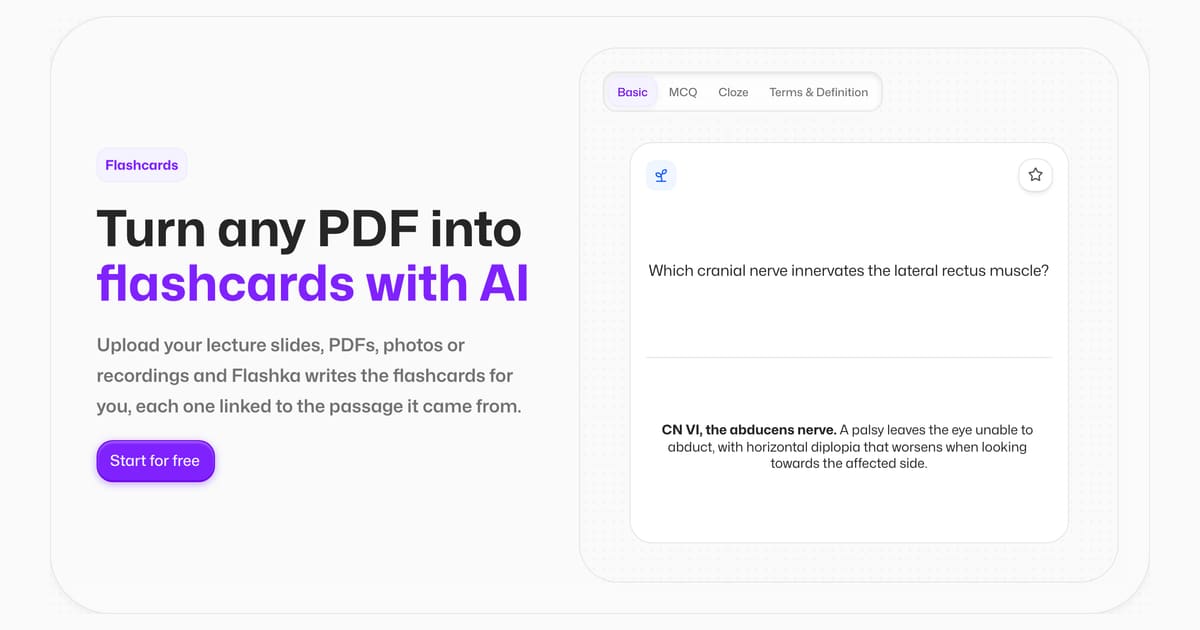
Flashka is a study app, and its AI tutor, Professor Ka, works on your material. Tag the decks he should read and he searches their documents, answers with the document and page he used, and acts on what you ask: he writes or edits cards, builds mind maps and summarises whole files.
Ka does not search the web; he works from your material and his own knowledge. He answers in the language you write to him in, and in the apps you can send him photos of a page or a whiteboard.
If you already made flashcards in ChatGPT, ask it to write them as CSV, with the question and the answer in two columns, and paste them into a Flashka deck's Import on the web, under CSV. For the full side-by-side, see Flashka vs ChatGPT.
Using both
Plenty of students use both: ChatGPT for a question about anything, a study app for the course they have to pass. The rule is the same either way. Let the AI explain, check what it says, and do the remembering yourself. For the wider picture, read what each kind of AI study tool does.
The short version
- Use ChatGPT to explain, to quiz you one question at a time, and to give feedback on your own answers.
- Give it your course material, and check anything you will be examined on.
- A chat does not schedule reviews: move what matters into flashcards with spaced repetition.
- A tutor that answers from your own documents and names the page saves the checking step.


