
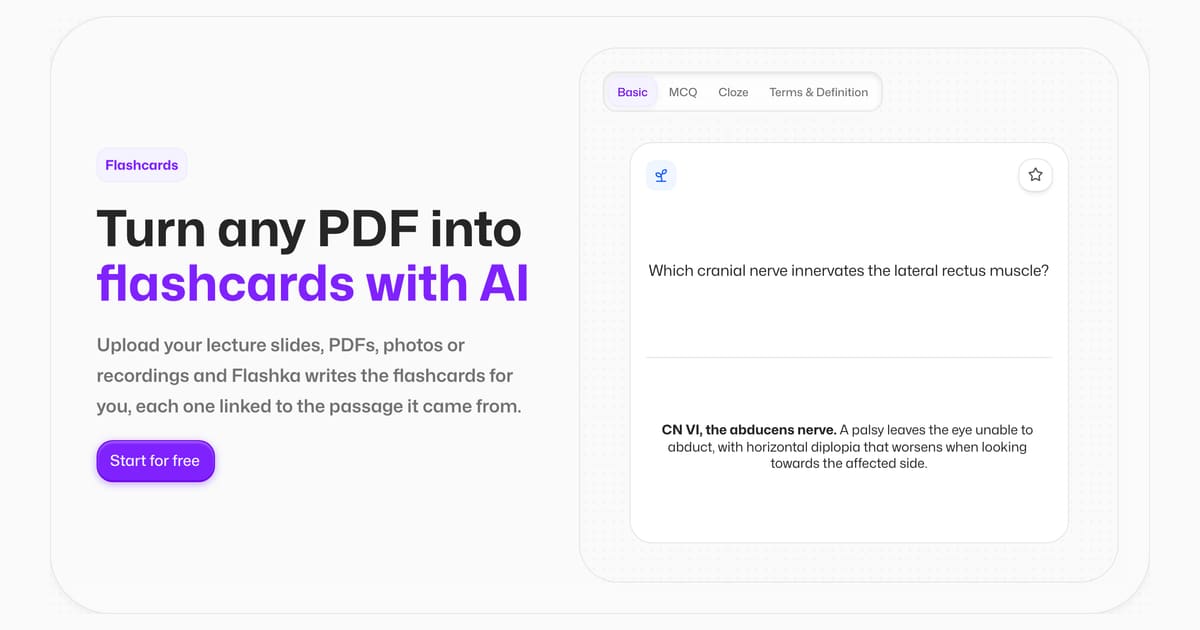
To turn a PDF into flashcards, upload it to an AI flashcard maker, choose the kind of card you need, generate the cards, and check each one against the page it came from before you study. Done this way, a lecture deck becomes a set of cards in the time it takes to read it once, and your evening goes on remembering instead of copying. Here is the whole process, step by step.
Why make flashcards from your own PDF?
Flashcards work because they make you pull an answer out of memory instead of reading it again. That effort, called active recall, is what makes a fact stick. Rereading a PDF feels productive, but recognising a page is not the same as being able to answer a question about it.
Cards written from your own course material add something a ready-made deck cannot: they ask about exactly what your exam covers, in your lecturer's words. The only problem has always been the time it takes to write them.
| Writing cards by hand | Generating them from the PDF | |
|---|---|---|
| Where your time goes | Copying sentences onto cards | Checking cards, then studying them |
| Coverage | What you had the energy to copy | Every key concept, term and definition in the pages you choose |
| Checking a card | Searching through your notes | Opening the passage it came from |
How to turn a PDF into flashcards in 4 steps
Step 1: Add your material
Start with the file you would otherwise reread. In Flashka you create a deck and add your material to it:
- PDF, Word, PowerPoint, Keynote, Pages or TXT, up to 200 pages and 100 MB per document. On the web you choose which pages to use.
- Photos of handwritten notes or a textbook page, up to 100 at once (JPG, PNG, GIF or WebP).
- A lecture recording, which is transcribed first.
- On the web, also a YouTube link, pasted text, or a topic you describe in a sentence.
If a module has several files, keep them in one deck. Cards, quizzes and notes can then come from any of them.
Step 2: Choose the kind of card
Match the card to the question your exam will ask:
| Card type | Use it for |
|---|---|
| Basic question and answer | Concepts, mechanisms and explanations |
| Cloze deletion | Definitions and lists you need word for word |
| Multiple choice | Exams that are multiple choice |
| Term and definition | Vocabulary, and language courses with two languages |
| Image occlusion | Labelled diagrams, one mask per label |
Cards come out in the document's language by default. You can pick any language for the front and the back, which helps when you study in a second language. For diagrams, read how image occlusion works.
Step 3: Generate
Press Generate and the cards stream in, covering every key concept, term and definition in the pages you chose. Want more? Generate more continues where the last batch ended, without repeating cards.
A generation that fails, is cancelled or produces no cards does not count toward your plan.
Step 4: Check every card against its source
Do not skip this. An AI can misread a table or miss the point of a paragraph, and a wrong card you memorise is worse than no card at all.
Every card in Flashka is linked to the passage it was written from. View source opens the document at that passage, highlighted, so checking a card takes a glance instead of a search. Edit it, delete it, or keep it.
You can also work the other way round: highlight a paragraph you know will be examined and turn just that into cards.
Then study them with spaced repetition
A deck you never review does nothing. Spaced repetition shows each card again just before you would forget it, and spaces the reviews further apart each time you remember. A short session every day does more than a long one the night before.
When a card does not make sense, ask Professor Ka, Flashka's AI tutor, to explain it. He answers from your own documents and names the page he used.
Tips for better AI flashcards
- Pick the pages that matter. Skip the title slide, the reading list and the admin.
- One idea per card. If a card asks two things, split it.
- Delete what you already know. Every card you could answer last year steals time from one you cannot.
- Reword it your way. If a card does not match how you think about the topic, edit it. It is your deck.
The short version
Upload the PDF, choose the card type, generate, check each card against its source, then review a little every day. The copying is the part software can do. The remembering is yours, and now you have the time for it.


